“Can we just swap that one shot?”
You don’t remember. Trace does.
A free plugin for Premiere Pro. Click any clip and it lists every place you used it, in every sequence.
Get Trace, free
The download and the install guide land in your inbox.
Project panel.
Free, for good. No account, no licence key.
Requires Premiere Pro 25.6 or newer · macOS & Windows
Watch it find every use of a clip
in one click.
No setup, no account. Install it and press the button.
Free, for good. Premiere Pro 25.6 or newer.
Get Trace free →No more asking, where did I use that clip?
The Video Usage column tells you a clip is used nine times. It won’t select those nine, won’t total them, won’t follow one into a nest, and won’t ignore the four old cuts in your _PREVIOUS bin. Trace does all four — so replacing a shot everywhere it appears is one press, not an afternoon of hunting.
Select
Nine uses. One selection.
Press Select all and every use becomes one real Premiere selection. Nudge them, replace them, colour them, delete them — one action instead of nine round trips. This is the part Premiere has never been able to do.

Follow
It follows the clip. Even into a nest.
A clip buried in a nest that’s cut into your master? Trace reports both — the use inside the nest, and where it lands in the sequence you’re actually in, labelled via Nest A. Native reports the first and never mentions the second.
Ignore
Your old cuts. Out of the way.
Keep old versions in a _PREVIOUS bin and every native usage list is full of them, with no way to filter. Trace hides them by default — and tells you how many it hid, so it is never quietly deciding for you.

Markers over every use
One press drops a marker on all of them, in a colour you pick. The same press takes them off again.
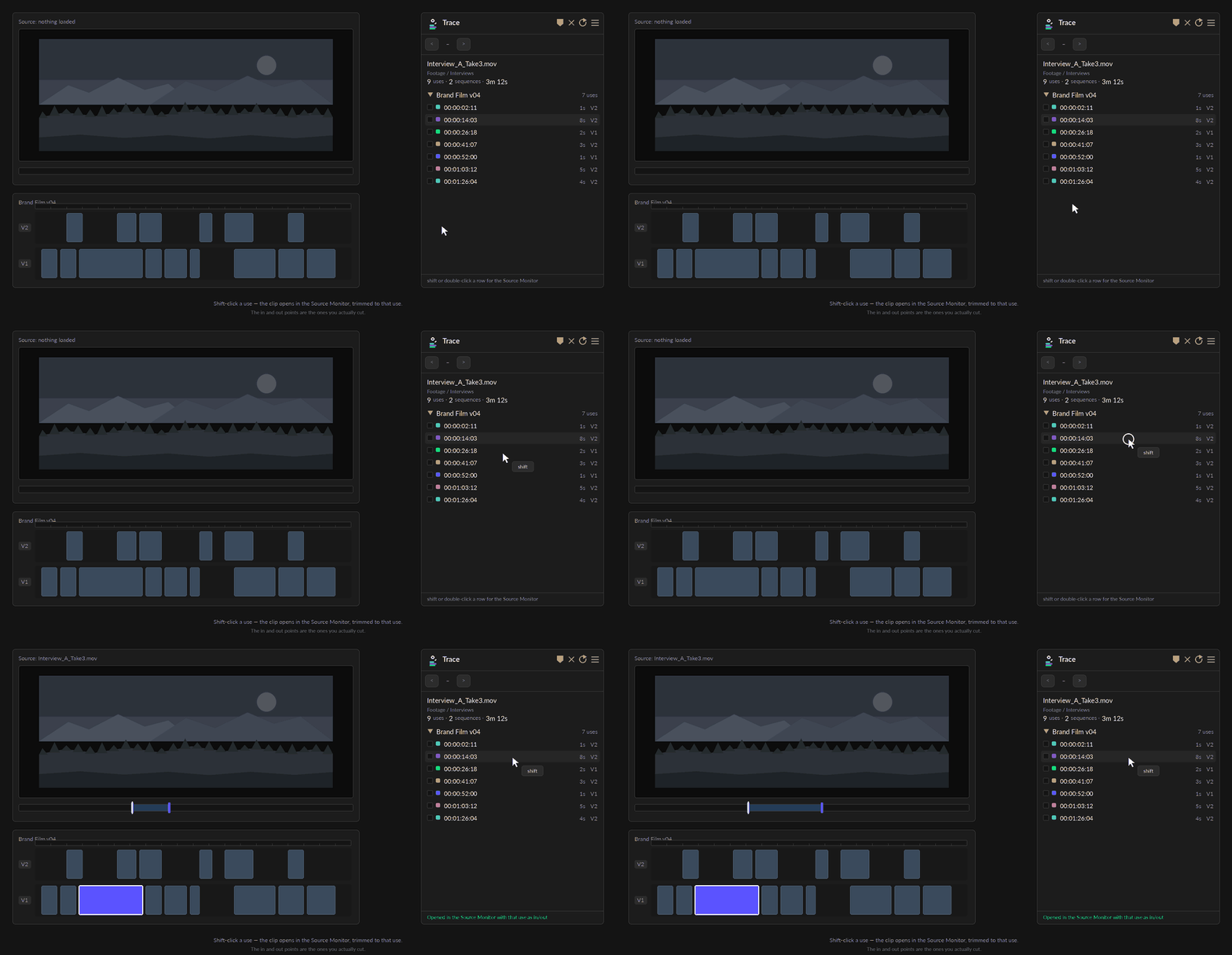
Straight to the Source Monitor
Shift-click a use and the clip opens with in and out already set to that use.
Totals, added up
Uses, sequences and screen time in one line — nine uses, four sequences, 3m 12s — so “how much of this is in the film?” has a number.
Repeats, told apart
“Nine uses” and “nine different bits of footage” are opposite facts about a job. Trace says 9 uses · 4 sections when they differ, and badges every use that is a repeat of one you have already counted.
Old cuts, by number
Brand Film_v04 retires _v03, _v02 and _v01 wherever they live — they no longer have to be filed in an archive bin for Trace to know they are done with. One tick box hides them, and says how many.
Colour it from here
Premiere’s own label colours, on the bar at the foot of the panel. Pin them open and work down a list of clips without leaving the panel you are already in.
How it works
Four clicks, and you have never left the timeline.
Press a step — the panel follows.
Project panel.
Why do I need this?
“Is that shot still in?”
Four things every editor needs to answer. Premiere has a native answer to one of them.
| Need | Premiere | Trace |
|---|---|---|
| Find where a clip is usedWhich sequences it appears in | ✓Video Usage column | ✓one click, no hidden column |
| Select all nine uses at onceTo replace, nudge, colour or delete them in one go | ✕one at a time | ✓one button |
| Follow it into a nestWhere a nested clip lands in the cut you’re actually in | ✕stops at the nest | ✓reports both |
| Ignore your _PREVIOUS binSo old cuts stop filling up every result | ✕no filter exists | ✓hidden, and counted |
Free, and it installs in a minute. Next time someone asks whether a shot is still in, you’ll answer in seconds — and you’ll be right.
Your whole project,
in one click.
Trace+ reads your entire project, not just an individual clip. See everything you’ve used and have left on the cutting floor.

Get Trace, free
Pop your email in the form at the top of this page and the download lands in your inbox, with the install guide.
SEND ME TRACE ↑Free, for good. No account, no licence key.
Requires Premiere Pro 25.6 or newer.
Project panel.